Integration Testing
When developers integrate the ToBid SDK, they often need to test various ad types from different ad networks. This is particularly important when first integrating the ToBid SDK, as developers should pay close attention to the parameters and configurations of each connected ad network.
To facilitate quick verification of integration results, ToBid provides developers with three options: a global testing tool, segment, and test parameters.
1. Testing Tool
The test ads enabled by the testing tool use the test IDs provided by ToBid for third-party ad networks. Developers do not need to configure any additional third-party parameters; they only need to add the test device ID.
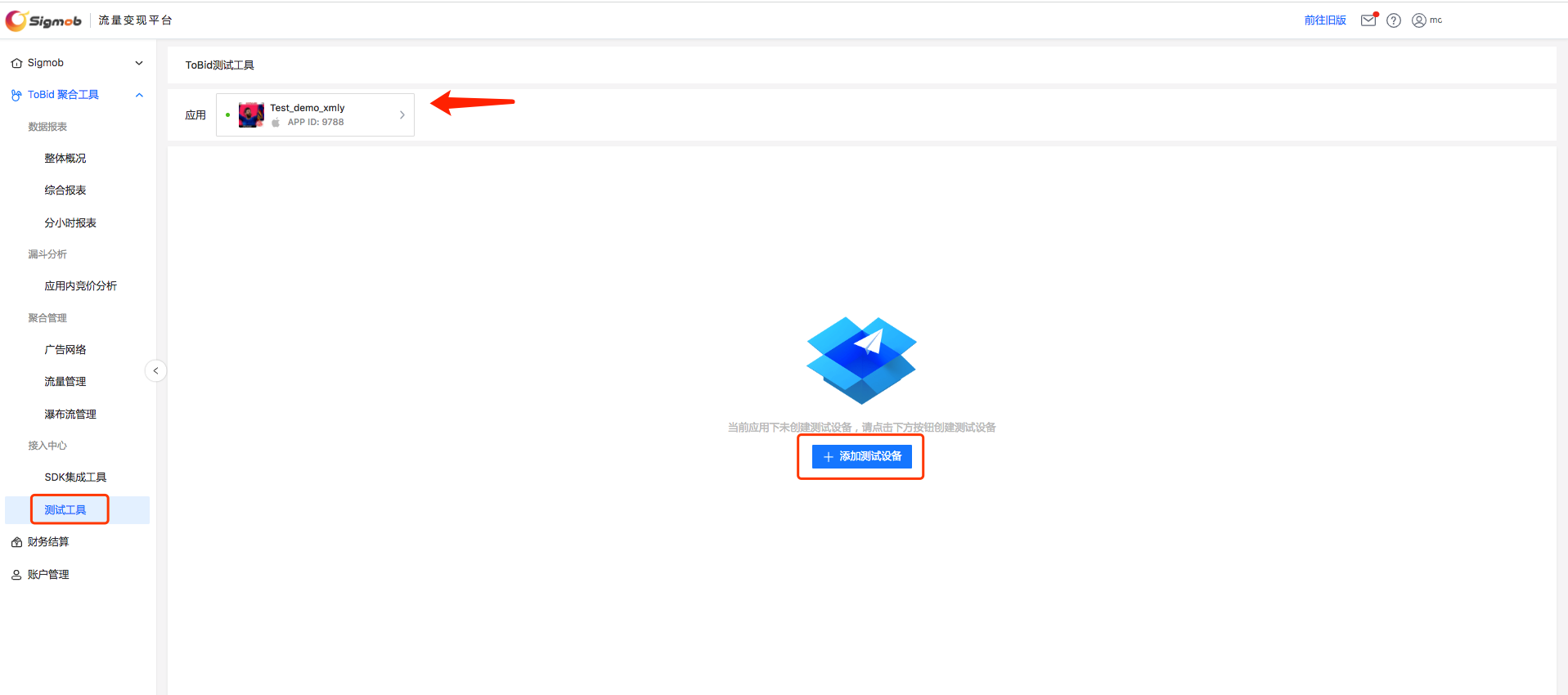
To access the 【Testing Tool】 page of the ToBid aggregation tool, go to the location shown in the image below. After selecting the appropriate app, create a test device.
In the popup window, enter the custom test device name, device ID type, and device ID. Then select the ad network you want to test and click save.
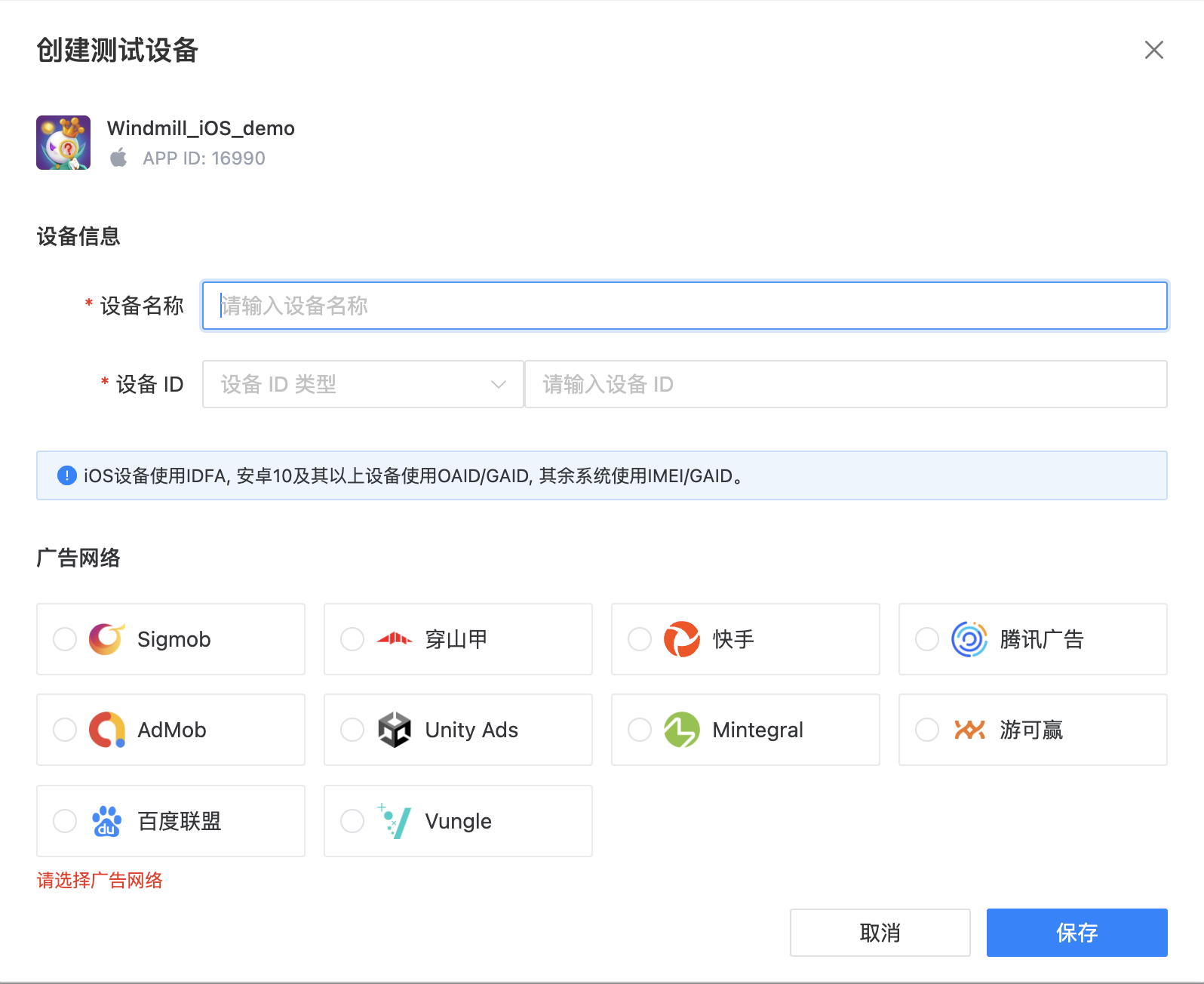
Note: After selecting the ad network, all ad requests for all ad types on the current device under the selected app will serve test ads from the chosen ad network.
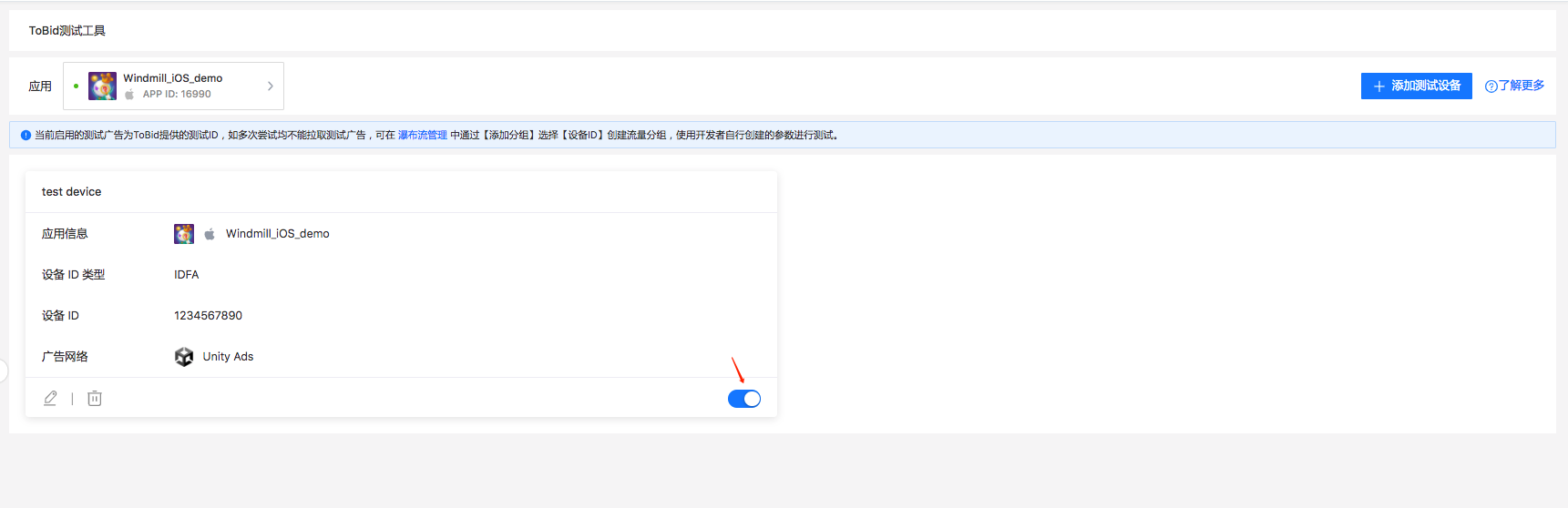
** Once you've added and activated the test device, it will start receiving test ads from the corresponding ad network.**
2. Segment
When the test parameters provided by ToBid fail to fetch test ads from the desired ad network, developers can independently create specified device traffic groups in the waterfall management by selecting the "Device ID" grouping rule under "Traffic Segmentation." Afterwards, they can conduct tests using parameters they've applied for themselves.
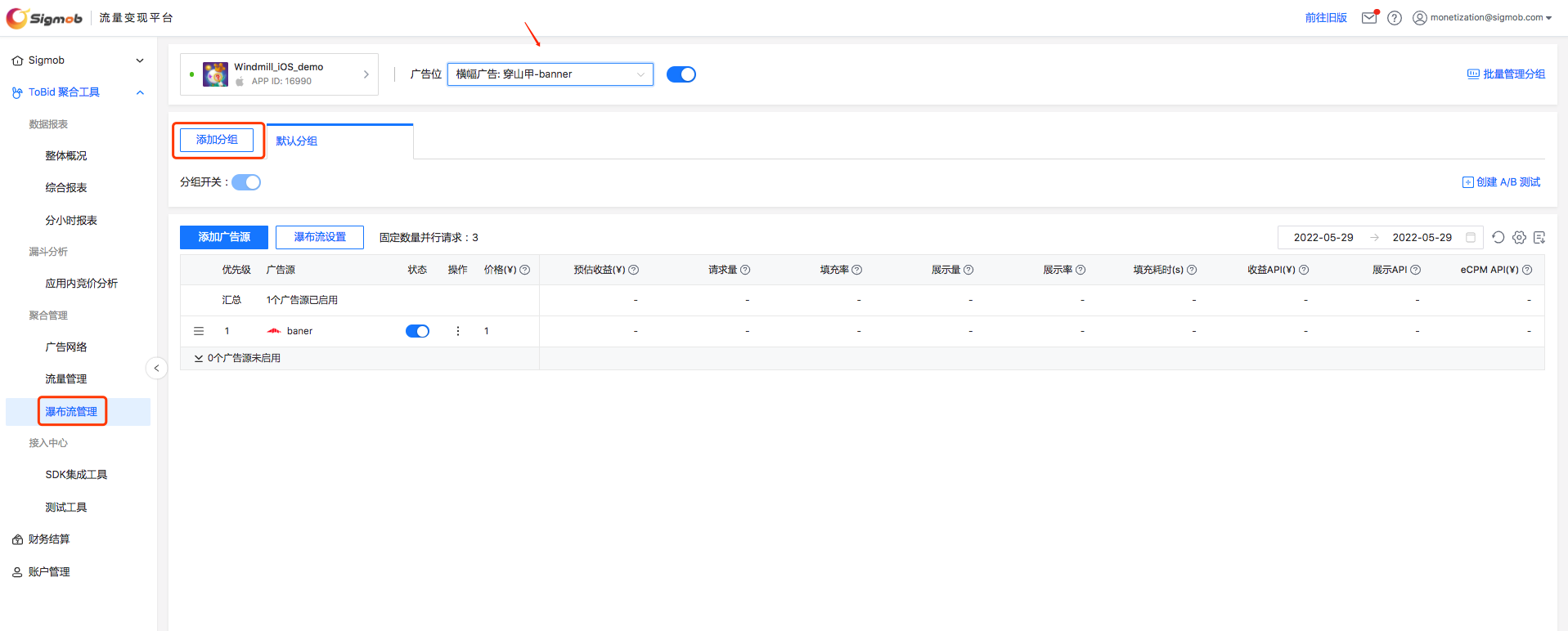
** To create traffic segmentation, navigate to "Waterfall Management," select the desired app and ad placement, then click on "Add Group" to initiate the creation of traffic segmentation.**
On the pop-up page, click on "Add Rule," then select either "Device ID" or "User ID" to create rules for specified devices.
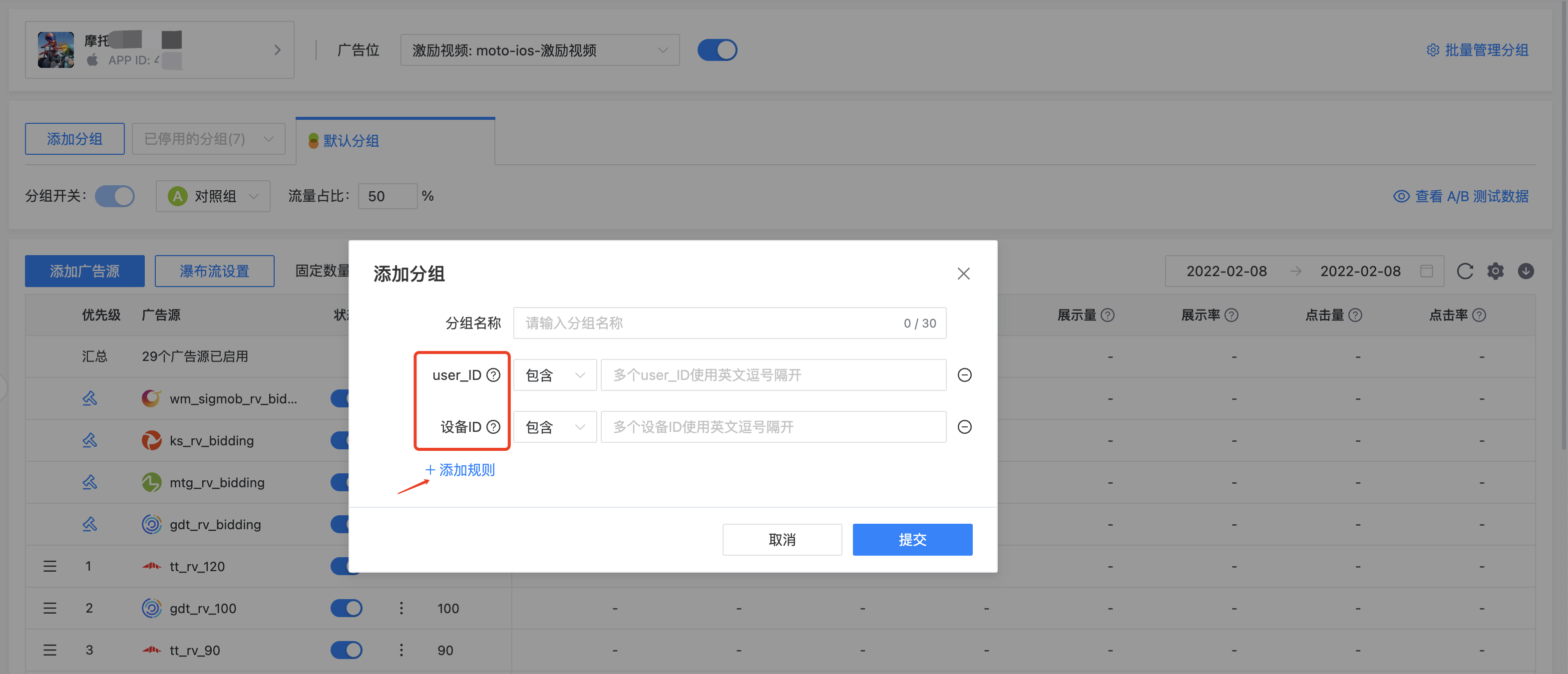
Rule Description
| Rule Name | Rule Description | Supported Parameter Settings or Types |
|---|---|---|
| user_ID | The ID that identifies users within the app's user system can be passed into the ad request interface. | This parameter is an ID generated within the developer's data system and is independent of the device ID. When unable to obtain the device ID, this parameter can be used to create specified groups. |
| Device ID | The device ID obtained from fetching hardware information on a mobile phone. | iOS:IDFA;For Android 10 and above: OAID. |
Note: In the same group, choose one of the two rules. If both rules are selected simultaneously, the server-side rule determination will take the intersection of the two rules for strategy deployment.
After selecting either "Device ID" or "User ID" and saving, a new traffic group will be created. This group signifies that when the device ID or user ID exactly matches the input value, ads will be delivered according to the current group's waterfall settings.
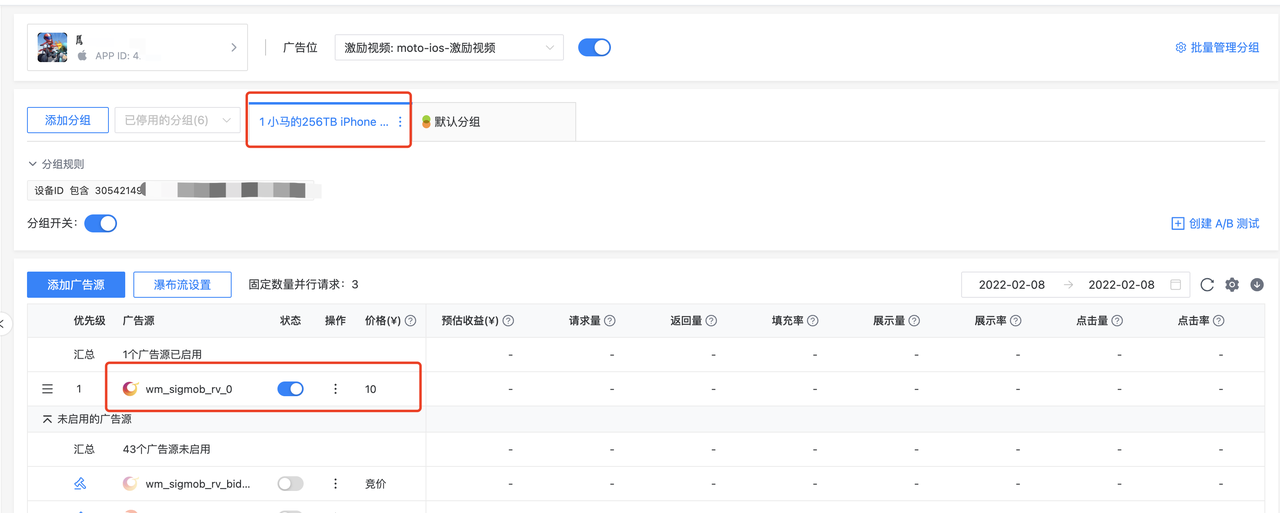
As you can see, in the waterfall configuration of this group, only one ad source from Sigmob is enabled, unlike the default group with multiple ad sources. When developers make ad requests from this device at this point, they will directly fetch ads from Sigmob.
Tips
Developers, by following the above method, can establish a device-specific waterfall configuration. Under this configuration, they can activate ad sources with no floor price parameters for all ad networks, as shown in the following image:
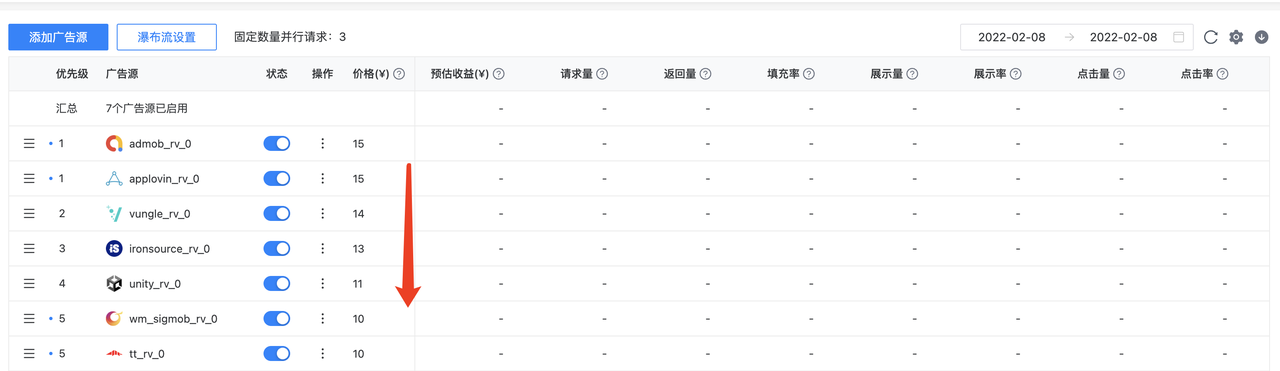
ToBid's server will, during each ad request, distribute ads from all ad sources according to the waterfall configuration mentioned above. Once developers have confirmed that ads from a particular ad network can be displayed, clicked, redirected, and installed properly, they can then deactivate the ad source of that network. This process continues until all ad sources have been tested and deactivated. Once completed, all integrated ad networks can be considered tested.
3. Test Parameters
Note: The following ad placements have already pre-added ad sources from a certain ad network, so no additional actions are required.
iOS ToBid APP ID:16990
| AD Network | Reward Video | Interstitial Ad - Full-Screen Video | Interstitial Ad - Half-Screen | Splash Ad | Native Ad | Banner |
|---|---|---|---|---|---|---|
| Sigmob | 8373387208687695 | 9690693976929807 | - | 8374774642581842 | 5756789376418096 | - |
| CSJ | 2214665927351825 | 3669507249662718 | 9932244407925258 | 2244649278022673 | 9537119634397373 | 9828667573411889 |
| Tencent | 0046753188978813 | 1540798484727804 | 0280361704608848 | 0280361704608848 | 7150829228286407 | 1651297928518439 |
| Kuaishou | 6167823231227754 | 7639580150401715 | 3690985116670027 | 6371776519025022 | 3359263494085330 | |
| Mintegral | 5787358330001656 | 3219172072794542 | - | 4291116760884064 | - | |
| Baidu | 3956293378187630 | 1036313174596416 | 4645295023471133 | 2304317258044592 | - | |
| Vungle | 9757938166352981 | 9370028652340772 | - | - | - | |
| UnityAds | 1728642467353555 | 5457847778477072 | - | - | - | |
| AdMob | 6373989018371509 | 0355653553995763 | - | - | - | 7487727314082660 |
Android ToBid APP ID:16991
| AD Network | Reward Video | Interstitial Ad - Full-Screen Video | Interstitial Ad - Half-Screen | Splash Ad | Native Ad | Banner |
|---|---|---|---|---|---|---|
| Sigmob | 9387595158051935 | 4753286031006593 | - | 2009470615832232 | 9224761251541712 | - |
| CSJ | 3245548070173764 | 9716819932607276 | 6041801895839958 | 5800294909655664 | 3128761931931303 | 6426940313333654 |
| Tencent | 1193836006892140 | 7545481407897468 | 3780333219352229 | 3431532395562379 | 1489316935402150 | 0572652890771407 |
| Kuaishou | 7233517458533366 | 3643065184356601 | 9907380281057668 | 9633401111091418 | 7637507237063488 | - |
| Mintegral | 5062866798108302 | 1487634309430012 | - | 7335341774069271 | - | 4614865511129242 |
| Baidu | 2771810861425553 | 9329165797267084 | 7591984450159998 | 4971306168449311 | - | 8544641057554824 |
4. FAQ
| Question | Auxiliary Locating Operations |
|---|---|
| Ad Loading/Interaction/Display Abnormality | 1、Check the output error code and refer to the integration documentation to find the corresponding error code. If the issue cannot be resolved, proceed to step 2. 2、Replace the app ID, ad placement ID, and package name in Tobid's demo. Verify the results: * If the demo works fine, then the issue might lie in the integration code. You can carefully compare your integration code with the demo's code. If you still have questions, you can seek technical support for further clarification. * If the demo encounters issues, you may need to capture network packets and provide the data to technical support. |
| Build Error | Output the error message to technical support. For initial integration, it's advisable to first establish a demo. |
| Crash | When seeking technical support, it's helpful to provide as much information as possible, including the system version, device type, SDK version, ad type, crash logs, and steps to reproduce the issue. Additionally, for Android issues, providing the APK package can be beneficial. |
| Code Interface Inquiry | You can start by reviewing the integration documentation. If the documentation doesn't address your issue, you can directly communicate with technical support. |
| Others | Communication with Technical Support |